ChatGPT is excellent at thinking things through. But a chat thread was never designed to be a task list, and the gap shows.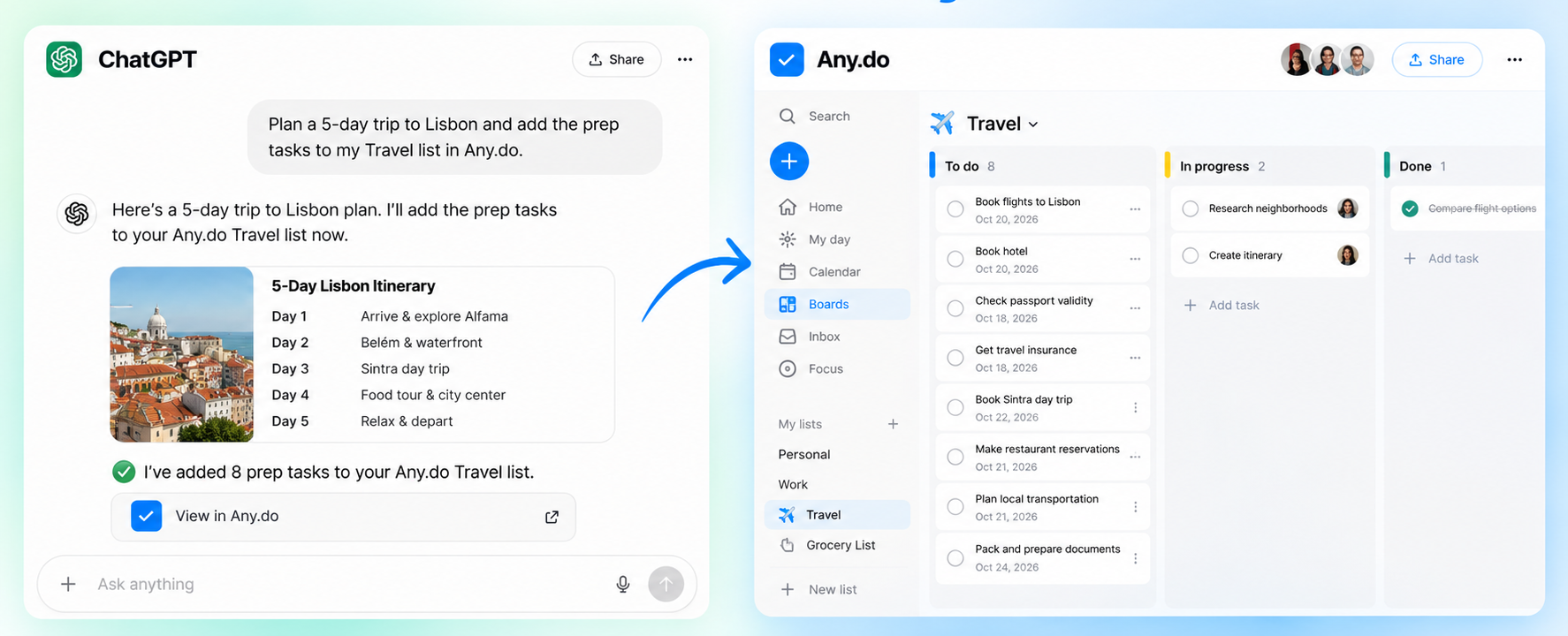 Here’s what typically happens:
- You ask ChatGPT to help plan your product launch. It gives you a great 12-step plan with owners and deadlines.
- You say “perfect, thanks” and close the tab.
- A week later you remember step 4 was due yesterday. You can’t remember which chat the plan was in.
- You either dig through your chat history or rebuild the plan from scratch.
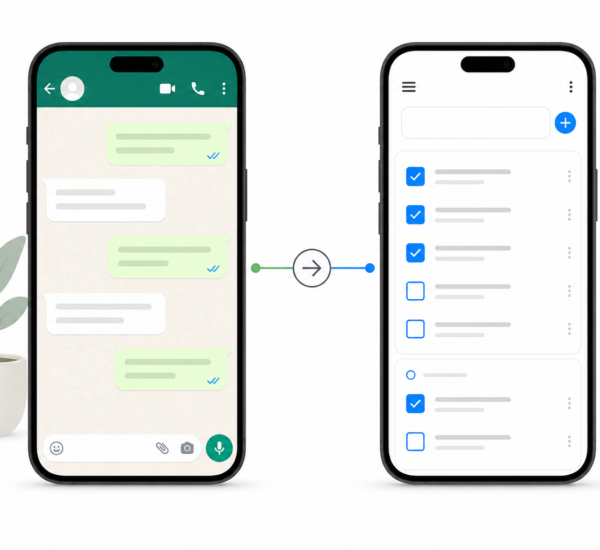
This isn’t a discipline problem; it’s a workflow problem. The plan lives in ChatGPT, your task manager lives somewhere else, and moving things between them takes effort that rarely happens in the moment.
The fix is to connect the two, so the plan and the to-do list are the same thing.
How Any.do Works Inside ChatGPT
Any.do connects to ChatGPT through the Model Context Protocol (MCP), the open standard that lets AI assistants securely use the apps you rely on. You approve the connection once, and ChatGPT can then read and update your Any.do tasks, lists, reminders and team workspaces whenever you ask.
Here’s what that looks like in practice.
Creating Tasks from ChatGPT
Just tell ChatGPT what you need to do, in plain language:
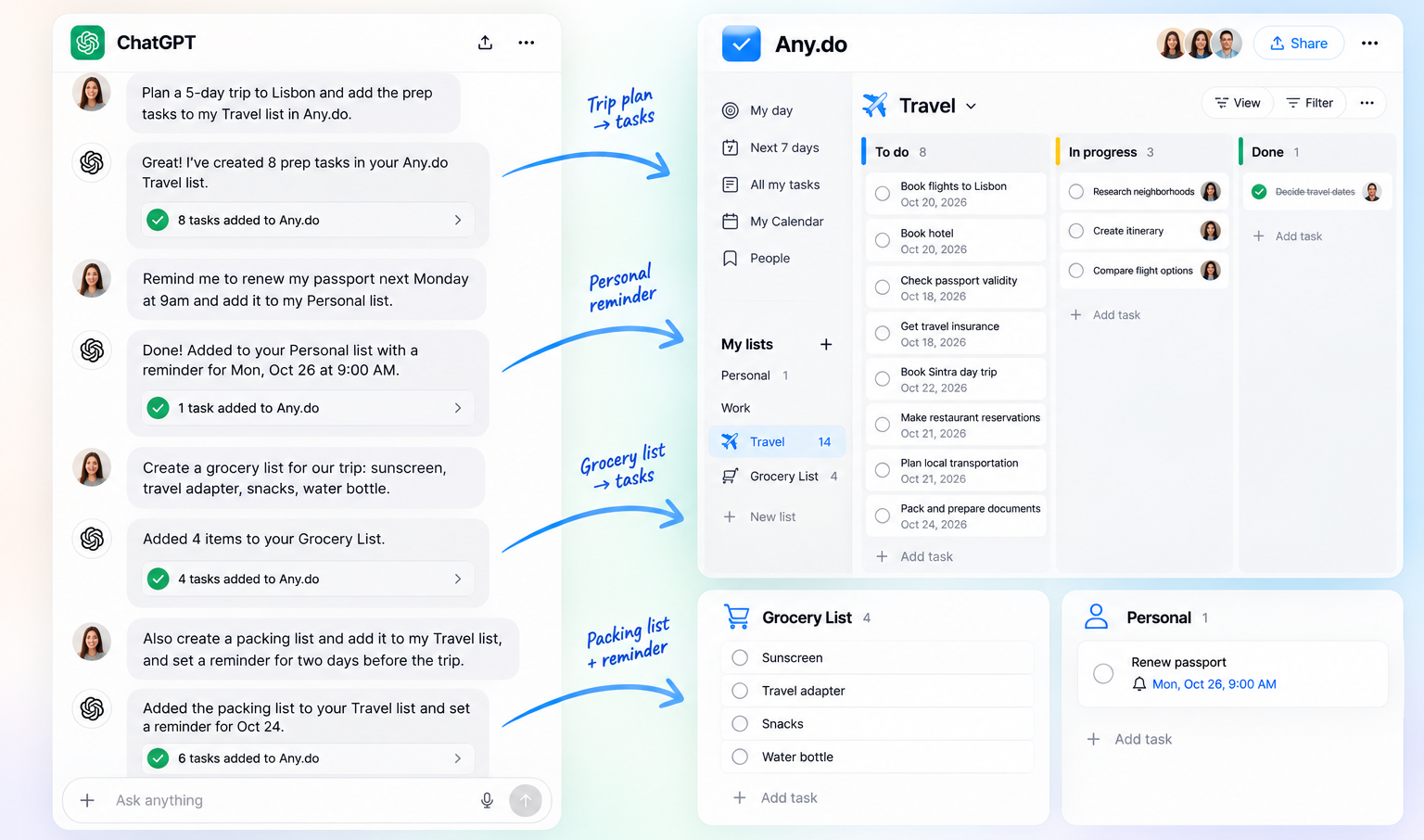
- “Add ‘renew passport’ to my Personal list for next Monday at 9am”
- “Remind me to call the accountant tomorrow at 2pm”
- “Add to my grocery list: eggs, olive oil, coffee”
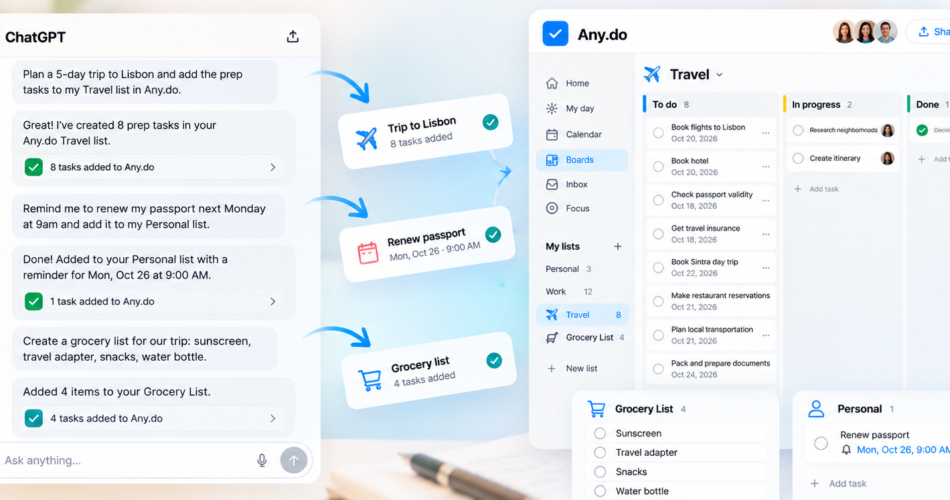
ChatGPT creates the task in Any.do right away, with the due date, time, list and notes you mentioned, and confirms it in the chat.
Turning a ChatGPT Plan into a To-Do List
This is where ChatGPT and Any.do really click. Ask ChatGPT to plan something, then send the result straight to your list:
- “Plan a 5-day trip to Lisbon and add the prep tasks to my Travel list”
- “Break my Q4 launch into tasks with due dates and add them to the Marketing workspace”
- “Turn these meeting notes into action items and assign them to the right people”
The brainstorm happens in ChatGPT. The follow-through happens in Any.do.
Viewing Your Tasks in ChatGPT
Ask ChatGPT about your list the same way you’d ask a colleague:
- “What do I need to do today?”
- “What’s overdue?”
- “What do I have due this week? Group it by list.”
ChatGPT reads your Any.do list and answers in the chat. No need to open a separate app.
Updating, Rescheduling and Completing Tasks
You can manage your list without touching it:
- “Mark all grocery items as done”
- “Move everything overdue to tomorrow, except work tasks”
- “Add a subtask to the client project: prepare materials for review”
- “Remind me every Friday at 4pm to send the weekly report”
Bulk changes that used to take twenty minutes of tapping now take one sentence. Every change syncs instantly to Any.do on your phone, desktop and web.
Why This Matters More Than You Think
The key idea is follow-through rate. ChatGPT is great at producing plans, but a plan is only useful if every step ends up somewhere you’ll actually see it again. If your tasks stay trapped in old chats, the plan quietly falls apart.
Connecting Any.do to ChatGPT closes that gap. The moment a plan takes shape in a conversation, it becomes real tasks with dates and reminders, in the same app that holds the rest of your commitments.
This is especially valuable for:
Knowledge workers who already plan in ChatGPT. Project breakdowns, meeting prep and weekly planning go straight from the chat into your list.
Managers and team leads. Delegate, check what’s still open on a board, and turn meeting notes into assigned tasks without updating anything by hand.
Freelancers and solo founders. Keep client work, admin and personal errands in one list, and manage all of it by typing a sentence.
People who find to-do apps tedious. If you’ve abandoned task managers because entering tasks felt like a chore, talking to ChatGPT removes the chore.
How to Connect Any.do to ChatGPT
Setup takes about a minute:
- Open ChatGPT and go to Plugins, then tap Add in the top-right corner.
- Select Add custom MCP server.
- Name it Any.do and set the server URL to https://mcp.any.do/sse
- Sign in to your Any.do account and approve the connection.
That’s it. Start a new chat and ask ChatGPT to do something with your tasks. You stay in control: you can disconnect Any.do from ChatGPT at any time.
Using Claude, Cursor or another AI assistant? See AI To-Do List: Connect Any.do to Claude & ChatGPT for setup steps for every MCP-compatible agent.