

Use Claude Cowork to brief your team, plan a campaign, and turn the next steps into assigned work in Any.do.
Monday at a small print studio can start with three questions. Will the paper arrive in time? Who’s on the weekend promotion? Which regulars need a follow-up?
The Claude Small Business plugin gives you a starting point for jobs like these. Type a slash command in Claude Cowork to pull together a brief or a list from your connected tools. Then use a short follow-up prompt to put the work on your team’s Any.do board.
Here are five commands to try. Each example tells you what to run, what to ask next, and what to check before the work goes to your team.
Set up the plugin and connect Any.do
The plugin bundles skills, which give Claude instructions for specific jobs. A slash command is a shortcut to run one. The Any.do connector lets Claude read or change tasks on the boards you can access, when you ask it to.
- Add Small Business in Claude. Go to Customize → Plugins → Discover, select Small Business, and choose Add. Connect the business tools relevant to the example you want to try. Anthropic lists eligible plans and the tools each command can use in its Small Business setup guide.
- Connect Any.do. Open the Any.do connector in Claude’s directory, select Connect to Claude, then sign in to Any.do and review the requested access. You can also find it under Customize → Connectors. See our Any.do + Claude walkthrough.
- Check access to one board. Start a Cowork conversation. If needed, enable Any.do from + → Connectors. Try a read-only prompt first: “Show me the sections on my Operations board in [Workspace name].”

1. Plan the week with /monday-brief
If your Monday meeting usually starts with a status round, use the brief to decide what needs attention first. /monday-brief brings together context like your calendar, sales, and pipeline from connected tools. Use the result to pick a few priorities from work your team is already tracking. See Claude Academy’s Monday brief walkthrough.
Copy this follow-up prompt
Use this Monday brief to review open tasks on the Operations board in [Any.do Workspace]. Suggest up to three existing tasks to move into This Week. For each, show the current section, owner, and why it matters this week. Stop after showing the proposed moves so I can review them.

Check before applying: Make sure Claude found the right tasks. Keep their current owners unless the team has agreed to reassign them. Approve the moves you want and check the updated board sections.
2. Build a campaign board with /marketing-monday
This command rounds up what’s working in marketing, what customers are saying, and what has changed in your market. Pick an idea your team has time to ship. For a print studio, that might be a weekend offer on short-run postcards.
Copy this follow-up prompt
Use the weekend promotion idea from the brief to propose a board called Weekend Promotion in [Any.do Workspace]. Use Prep, Launch, and Measure as the sections. Give me four tasks, a clear outcome for each, and an owner where I’ve named one. Show the board outline and wait for my approval before creating it.

Check before creating: Make sure someone owns offer approval, and decide what you’ll measure while the promotion is running. Once you’ve checked the outline, ask Claude to create the board and tasks in your named Workspace. See what the Any.do connector can do.
3. Assign customer follow-ups with /reactivate
If a regular customer has gone quiet, /reactivate can use connected customer data to identify people who may be worth contacting and draft a win-back message. Give the people who know those customers a clear review task.
Copy this follow-up prompt
From the win-back list, suggest up to five tasks for the Review drafts section of my Customer Success board in [Any.do Workspace]. Assign each proposed task to its confirmed account owner. Flag any owner you’re unsure about. Show me the task titles and owners first. Keep the outreach in draft form for the team to review.
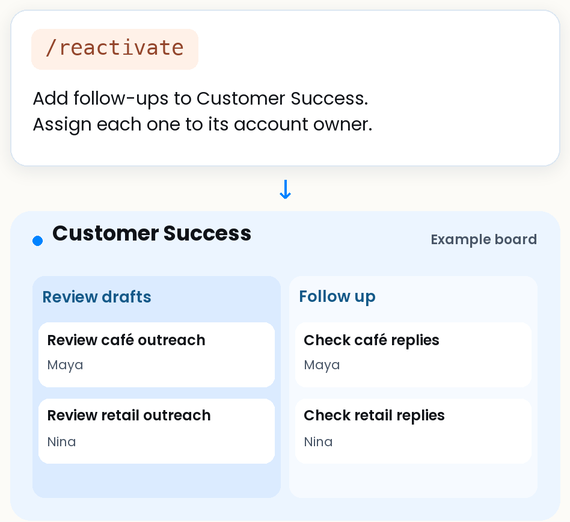
Check before assigning: Make sure the account history supports reaching out. A good board task says who checks the draft and what they should verify. Keep customer details in the tools and boards your team is authorized to use.
4. Prioritize sales calls with /call-list
Use this when the team has a short block for sales calls and several leads to choose from. Claude can prioritize leads from supported sources and prepare talking points for each. Put the calls someone can make today into a shared queue.
Copy this follow-up prompt
From this call list, propose the top three calls for today in the Call today section on my Sales board in [Any.do Workspace]. Include the reason to call, one useful talking point, and the current account owner if confirmed. Check the board for an open task for each lead and flag any duplicates. Wait for my approval before adding tasks.
Check before adding: If a teammate already owns a follow-up, share the talking point with that person and keep one task for the lead.
5. Make a purchasing checklist with /restock
When a supplier delivery can make or break a print job, run /restock to review reorder suggestions drawn from connected inventory tools. Turn the items that need a human check into purchasing tasks, such as confirming paper stock or asking a supplier for a lead time.
Copy this follow-up prompt
From the restock recommendations, propose up to three verification tasks in the Purchasing section of my Operations board in [Any.do Workspace]. Include the item, suggested quantity, and which job needs it when that information is available. Mark missing quantities or lead times for me to confirm. Stop after the task preview and keep any purchase orders or emails in draft form.
Check before assigning: Confirm quantities against current stock and open orders. Give the purchasing owner enough context to verify the recommendation with the supplier.
Start with one board and one repeat job
The follow-up prompts all use the same pattern. Name the Workspace and board, say what you want Claude to read or change, and say when you want to review it.
For existing-task edits, review the proposed changes before applying them. Board and task creation can happen directly through the connector, so put the review step in your prompt when you want one. See how Any.do handles connector changes.

Try it before your next team check-in. Connect Claude to Any.do, run /monday-brief, and review the first proposed move with your team.
For setup with other assistants, see how to connect Any.do to Claude, ChatGPT, and other AI tools.