Why Any.do + Zapier Changes How You Manage Tasks
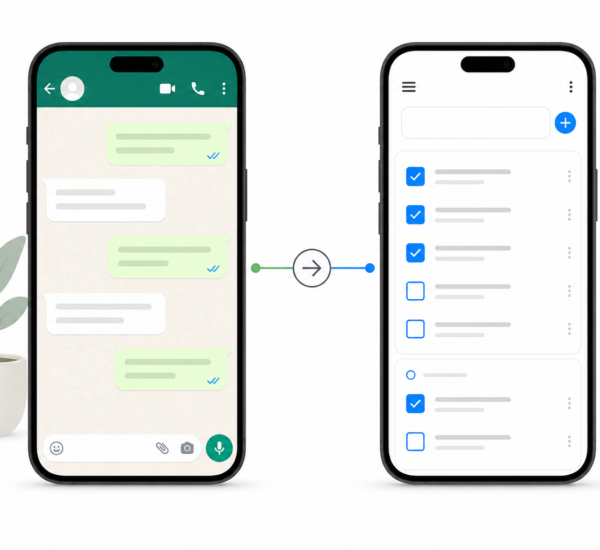
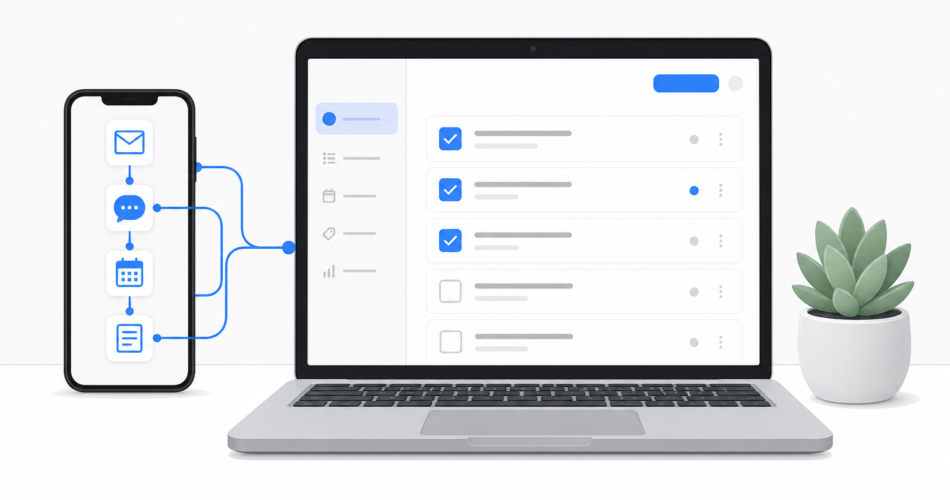
The any.do zapier integration turns your task manager into an automation hub. Instead of manually creating tasks from emails, form submissions, calendar events, or team messages, Zapier watches those systems for you and creates the tasks automatically. You define the rules once, and from then on everything flows into Any.do without any manual input.
This guide covers 10 specific automations you can set up today, plus how to get the integration running in a few minutes.
How to Connect Any.do with Zapier
Before building automations, you need to connect both accounts:
- Go to zapier.com and sign in or create a free account.
- Click “Create Zap.” A Zap is a single automation: one trigger (something that happens) connected to one or more actions (what Zapier does in response).
- Search for Any.do in the app list. You will see Any.do listed as a supported app.
- Click “Connect” and authorize Zapier to access your Any.do account. You will be redirected to Any.do’s authorization page. Approve the connection and return to Zapier.
- Choose your trigger app. This is the app that starts the automation. For example, Gmail (new email), Google Forms (form submission), or Slack (new message).
- Configure the trigger and action to map data from the trigger app into your Any.do task fields: title, due date, list, and assignee.
- Test and turn on the Zap. Zapier runs a test to confirm the connection works, then activates the automation.
The initial setup takes about 10 minutes. Each additional Zap takes 5 minutes or less once you are familiar with the interface.
10 Any.do Zapier Automations Worth Setting Up
1. Turn Gmail emails into tasks
Trigger: New email in Gmail (filtered by label, sender, or subject line keyword). Action: Create a task in Any.do with the email subject as the title and the sender in the notes.
Use this for client requests that arrive by email. Instead of leaving them in your inbox and hoping you remember to act, every tagged email becomes a task the moment it arrives. This is an automated version of what the Any.do Gmail integration lets you do manually.
2. Create tasks from new Slack messages with a specific emoji reaction
Trigger: New reaction added to a Slack message (emoji: a specific one like white_check_mark). Action: Create a task in Any.do with the message text as the title.
When someone reacts to a Slack message with a checkmark emoji, it becomes a tracked task automatically. This extends the Any.do Slack integration with reaction-based task capture, so your team can flag action items in conversation without anyone breaking their flow to open a task app.
3. Add tasks from Google Form submissions
Trigger: New response in Google Forms. Action: Create a task in Any.do with form fields mapped to the task title, notes, and due date.
If your team takes requests through a form, this Zap turns every submission into a tracked task automatically. No more checking the spreadsheet and manually copying items into your task manager.
4. Create a task when a GitHub issue is assigned to you
Trigger: New issue assigned to you in GitHub. Action: Create a task in Any.do with the issue title and a link to the GitHub issue in the notes.
For developers managing work across GitHub and Any.do, this keeps your personal task list in sync with your assigned issues without any manual entry. When the issue is assigned, the task appears in Any.do immediately.
5. Add tasks from starred items in Feedly or RSS feeds
Trigger: New starred item in Feedly (or new item in an RSS feed). Action: Create a task in Any.do titled “Read: [article title]” with the URL in the notes.
If you use an RSS reader and regularly save articles to read later, this automation adds them directly to a “Read Later” list in Any.do rather than leaving them in a separate reading app you may not check regularly.
6. Send a Slack notification when an Any.do task is completed
Trigger: Task marked complete in Any.do (filtered by list or assignee). Action: Post a message to a Slack channel with the task title.
This reverses the direction: instead of Slack feeding tasks into Any.do, completed Any.do tasks send updates back to Slack. Useful for team leads who want visibility on completions without requiring anyone to post manual updates.
7. Create tasks from new rows in Google Sheets
Trigger: New row added to a Google Sheet. Action: Create a task in Any.do with the row data mapped to task fields.
If your team tracks incoming requests, leads, or action items in a shared Google Sheet, this Zap turns every new row into a task automatically. Particularly useful for sales teams, support teams, or any workflow where a spreadsheet serves as the intake system.
8. Add a task when a Stripe payment comes in
Trigger: New successful payment in Stripe. Action: Create a task in Any.do: “Follow up with [customer name]” with the payment amount and date in the notes.
For small businesses and freelancers, this automation creates a follow-up reminder every time a payment is received, so no new customer goes unacknowledged and no invoice is left without a thank-you or onboarding step.
9. Create a recurring weekly review task
Trigger: Schedule (every Friday at 4pm). Action: Create a task in Any.do: “Weekly review” with a checklist of review steps in the notes.
Zapier’s built-in Schedule trigger fires at any time interval you define. Use it to create recurring tasks in Any.do that you want to appear at a specific time each week, separate from Any.do’s built-in recurring task feature. This works well for structured reviews where the task needs fresh notes each time it appears.
10. Log completed Any.do tasks to a Google Sheet
Trigger: Task marked complete in Any.do. Action: Add a row to a Google Sheet with the task title, completion date, and list.
This gives you a running log of completed work. Useful for freelancers tracking billable work, managers reviewing team output, or anyone who wants a historical record of what got done each week. The sheet builds itself passively as tasks are completed.
What You Can Automate with Zapier Task Automation
Beyond these specific examples, the general pattern of zapier task automation is: anything that currently requires you to manually create a task in Any.do can become a trigger. New emails, new messages, form submissions, calendar events, CRM updates, payment notifications — all of these can become task creation events.
The question worth asking is not “what can I automate?” but “where do I currently lose things?” The answers almost always point to a Zap worth building. For most teams, the highest-value automations are the ones that capture action items from the tools where work gets assigned (email, Slack, GitHub, CRM) and route them into the task system where work gets tracked.
If your team is structuring tasks across multiple projects, Any.do’s shared task management works well as the receiving end of these automations. Tasks flow in automatically, and your team manages them in one place regardless of where they originated.
Free vs Paid Zapier for Any.do Automations
Zapier’s free plan allows up to five active Zaps with single-step automations (one trigger, one action). This is enough for most individual users. The examples above all run on a single Zap each.
Multi-step Zaps, which let you trigger multiple actions from a single event, require a paid Zapier plan. For example, creating a task in Any.do AND sending a Slack notification from a single trigger requires at least Zapier Starter ($20/month). For teams running complex workflows, the paid tier pays for itself quickly. For individuals setting up a few key automations, the free tier is sufficient.
Start With One Automation
The most useful first Zap is usually the one that captures your most frequently dropped tasks. If you lose things in email, start with the Gmail trigger. If things fall through in Slack, start with the reaction-based Zap. Pick the single place where action items disappear most often, build one Zap to capture them, and run it for a week before adding more.
Any.do is free to start, and connecting it to Zapier takes less than 10 minutes. If you are not yet using Any.do as your task hub, start here and add the Zapier connection once your lists are set up.