Google Calendar is where most people’s schedules live. But if your to-do list and reminders exist somewhere completely separate from your calendar, you’re operating with an incomplete picture of your day – and things inevitably fall through the cracks.
The best reminder apps in 2026 don’t just sit alongside Google Calendar. They sync with it deeply, showing your tasks and events in a unified view so you can plan your day with full context.
Any.do does this better than any other app on the market. Here’s what that looks like in practice – and why it matters.
The Problem with Keeping Reminders and Calendar Separate
Most people use Google Calendar for events and a separate app (or their phone’s built-in reminders) for tasks. This seems logical – they’re different types of things. But in practice, the separation creates real friction:
Scheduling blindness – When you’re setting a reminder to work on a report, you can’t see that you have three back-to-back meetings that afternoon. You set the reminder for a time that turns out to be impossible.
Double-checking fatigue – You check Google Calendar to see your schedule, then switch to your reminder app to see your tasks. Two apps, two mental models, twice the friction.
Missed context – A reminder to “prepare presentation slides” is more meaningful when you can see that the presentation is tomorrow at 2pm. When reminders and calendar live in separate apps, you lose that context.
Over-committing – Without seeing your full calendar while building your to-do list, it’s easy to commit to more than your schedule can actually hold.
The solution isn’t a better calendar or a better reminder app in isolation – it’s a tool that genuinely unifies both.
How Any.do Syncs with Google Calendar
Any.do’s Google Calendar sync isn’t a bolt-on feature – it’s central to the product experience. Here’s how it works:
Two-Way Sync
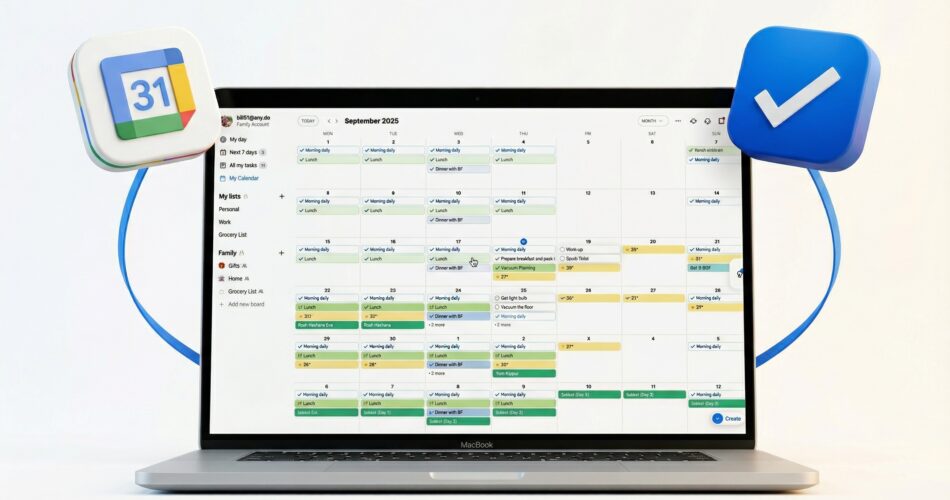
Any.do syncs with Google Calendar bidirectionally. Events you create in Google Calendar appear in Any.do’s daily view. Tasks with due dates you create in Any.do can appear in your Google Calendar. Changes made in either app reflect in both.
Unified Daily View
Any.do’s daily planner shows your Google Calendar events and your tasks together in a single scrollable timeline. You see your 9am standup, your 11am task to follow up with a client, your noon lunch meeting, and your 3pm task to review a document – all in one place.
This unified view is one of the most practically useful features in any productivity app. It answers the most important question in daily planning: given what I have going on today, when am I actually going to do my tasks?
Smart Scheduling
When you have an unscheduled task, Any.do can suggest when to tackle it based on your calendar availability. Instead of tasks floating in a list with no time context, they get anchored to specific windows in your actual day.
Multiple Calendar Support
Any.do syncs with multiple Google Calendars simultaneously – your personal calendar, your work calendar, shared family calendars. All of them contribute to the unified view, giving you complete context when planning your day.
Setting Up Any.do with Google Calendar
The setup takes about two minutes:
- Download Any.do and create an account
- Go to Settings → Calendar Integration
- Connect your Google account and select which calendars to sync
- Your Google Calendar events will appear in Any.do immediately
From that point on, Any.do and Google Calendar stay in sync automatically.
Beyond Basic Reminders: What Sets Any.do Apart
Any.do goes beyond what most reminder apps offer:
Location-based reminders Set a reminder to trigger when you arrive at or leave a specific location. “Remind me to call the doctor when I leave the office” – this is the kind of contextually intelligent reminder that actually works in the real world, not just on paper.
Recurring task scheduling Any reminder you set in Any.do can be made recurring – daily, weekly, monthly, or on a custom schedule. Combined with Google Calendar sync, your recurring tasks appear in your calendar too, so you can see them when you’re scheduling other things.
Natural language input Type “remind me tomorrow at 9am to send the contract” and Any.do creates the reminder correctly. This makes adding reminders fast enough that you’ll actually do it in the moment rather than relying on memory.
Alexa and Google Assistant integration “Hey Google, remind me to take out the trash tonight” creates a task in Any.do. Voice-created reminders show up in your unified task and calendar view, fully synced.
Who Benefits Most from Any.do + Google Calendar Sync?
Professionals with busy calendars If your Google Calendar is packed, you need to see your tasks in context of your schedule. Any.do makes this possible.
People with both personal and work commitments Syncing multiple calendars (personal Gmail + Google Workspace) into a single view helps you avoid scheduling conflicts between work deadlines and personal commitments.
Anyone who manages others If you assign tasks to others and need to track their deadlines alongside your own schedule, Any.do’s combination of task assignment and calendar sync is uniquely useful.
Families using Google Calendar Many families use shared Google Calendars for events. Adding Any.do’s family sharing features on top of that calendar sync creates a complete household management system.
Any.do vs. Other Reminder Apps with Google Calendar Sync
| App | Google Calendar Sync | Unified View | Location Reminders | Task Assignment | Free |
|---|---|---|---|---|---|
| Any.do | ✅ Two-way | ✅ Full | ✅ | ✅ | ✅ |
| Google Tasks | ✅ Native | ✅ | ❌ | ❌ | ✅ |
| Todoist | ✅ (paid) | Partial | ✅ (paid) | ✅ | Limited |
| TickTick | ✅ (paid) | ✅ | ✅ | ✅ | Limited |
| Apple Reminders | ❌ | ❌ | ✅ | Limited | ✅ |
Google Tasks has native calendar integration but is extremely basic. Any.do matches the depth of Google Calendar integration while adding a full-featured task management layer on top.
The Bottom Line
A reminder app that doesn’t know your calendar is guessing. Any.do’s deep Google Calendar sync means your reminders and your schedule live together – giving you a complete, accurate picture of your day so you can plan realistically and actually follow through.
Try it free: Download Any.do and connect your Google Calendar in minutes.