
The Any.do Slack Integration Keeps Tasks Where Your Team Already Works
If your team runs on Slack, you already know the problem: important action items come up in conversations, someone says they will handle it, and then it disappears into the channel history. The any.do slack integration solves this by letting you create, assign, and track tasks directly from Slack, without switching to a separate app or asking your team to change how they communicate.
This guide covers how to set up the integration, what it actually does, and the most effective ways to use it so nothing falls through the cracks in your team conversations.
What the Any.do Slack Integration Does
The integration connects Any.do to your Slack workspace. Once installed, you can turn any Slack message into a task with a single action. You can also receive task reminders and due date notifications inside Slack, so your team does not need to check a separate app to stay on top of what is due.
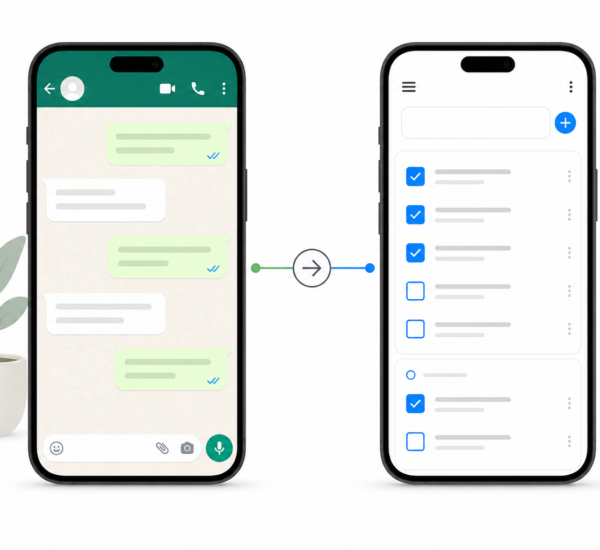
Tasks created from Slack appear immediately in Any.do, fully synced across all devices. They can be assigned to team members, given due dates, organized into shared lists, and managed like any other task in your workflow. The Slack channel becomes an input method. Any.do remains the system of record.
How to Set Up the Any.do Slack Integration: Step by Step
- Open your Any.do account in the web app or on desktop and navigate to Settings.
- Go to Integrations. You will see a list of connected apps and available integrations. Find Slack in the list.
- Click Connect with Slack. You will be redirected to Slack’s authorization page. Choose the workspace you want to connect and click Allow.
- Install the Any.do app in Slack. After authorization, Any.do will prompt you to add it to your Slack workspace. This installs the Any.do bot and enables the message action menu that lets you create tasks from messages.
- Turn a message into a task. In any Slack channel or DM, hover over a message and click the three-dot menu (More actions). You will see an option to “Add to Any.do.” Click it, and a panel opens where you can edit the task title, set a due date, choose a list, and optionally assign it to a team member.
- Enable notifications (optional). In the Any.do integration settings, you can choose to receive task reminders and overdue notifications as Slack messages. This keeps your team informed without requiring them to open Any.do.
The setup takes about five minutes. After that the workflow is fully embedded in Slack.
The Best Ways to Use Slack Task Management With Any.do
Capture Action Items From Meetings and Discussions
The most common source of dropped tasks is the Slack conversation where someone says “I’ll take care of that” and then the message scrolls away. The moment someone commits to something in Slack, convert that message into a task immediately. Take 10 seconds to set a due date and assign it. The commitment is now in a system, not just a chat log.
This is especially useful for channel discussions where multiple people are involved. Instead of a pinned message or a thread that gets forgotten, the action item lives in Any.do where it can be tracked to completion.
Use It for Cross-Team Requests
When another team sends you a request in Slack, turning it into a task creates a clear record of what was asked and when. You can set a due date, add notes with context from the conversation, and organize it into the right project list. The person who made the request stays in Slack. Your work happens in Any.do. The integration bridges the two without friction.
Send Task Reminders Back Into Slack
Any.do can send reminder notifications to a specific Slack channel or DM when tasks are due or overdue. For team leads, setting up a shared project list with due date reminders delivered to the team channel creates lightweight accountability without requiring daily standups or status checks.
Keep Personal and Team Tasks Separate
One of the advantages of using Any.do for slack task management is that tasks created from Slack sit alongside your personal tasks in the same app, organized into whichever lists you set up. You can have a “Slack Requests” list for anything that comes in via Slack, separate from your own planned work. This makes it easy to review everything in one daily planning session without tasks from different sources mixing together.
If you use Any.do’s daily planner view, all of these tasks, whether from Slack, Gmail, or added directly, appear in the same prioritized view when you plan your day. This is one of the core strengths covered in how Any.do’s calendar and task integration works for daily planning.
Any.do Slack Integration vs. Slack’s Built-In Reminders
Slack has a built-in reminder feature: you can set a reminder on any message and Slackbot will ping you at the specified time. This works for personal reminders but has real limits for team use. Reminders are not tasks. They do not have assignees, lists, priorities, or a shared view. They also do not sync to anything outside Slack.
The any.do slack integration turns Slack messages into proper tasks that live in a system. Team members can see them, due dates are tracked, and nothing depends on remembering to set a Slackbot reminder before the context disappears. For team workflows, this is a meaningful step up from native Slack reminders.
Combining Slack With Any.do’s Other Integrations
Any.do integrates with several tools your team likely already uses. If you are also using Gmail, tasks from email and tasks from Slack can both flow into the same Any.do workspace, giving you a single view of everything that has been assigned or requested across channels. You can read about the Gmail Any.do integration and how to set that up alongside Slack.
For teams that want to automate even more, connecting Any.do to Zapier lets you build custom flows: for example, creating a task automatically when a specific emoji reaction is added to a Slack message, or when a form is submitted. Shared task management for teams covers how to structure these workflows across a growing team.
Getting Started
If tasks are regularly getting lost in your Slack conversations, the any.do slack integration is a direct fix. It takes five minutes to install and fits into your team’s existing communication flow without requiring anyone to change how they work in Slack.
If you are not yet using Any.do for your team, start with a free account and connect Slack as the first integration. Most teams find it becomes a natural part of how they handle action items within the first few days.