The Gmail Any.do Integration Makes Your Inbox Actionable
If you use Gmail, you already know the problem: emails pile up, some of them require action, and by the time you get back to them they are buried under 40 new messages. The gmail any.do integration solves this directly. Instead of using your inbox as a makeshift to-do list, you can turn any email into a proper task with a due date, a reminder, and a place in your workflow, in a single click.
This guide walks through exactly how to set it up, how the integration works day to day, and the best ways to get value from it without adding complexity to your routine.
What the Gmail Any.do Integration Does
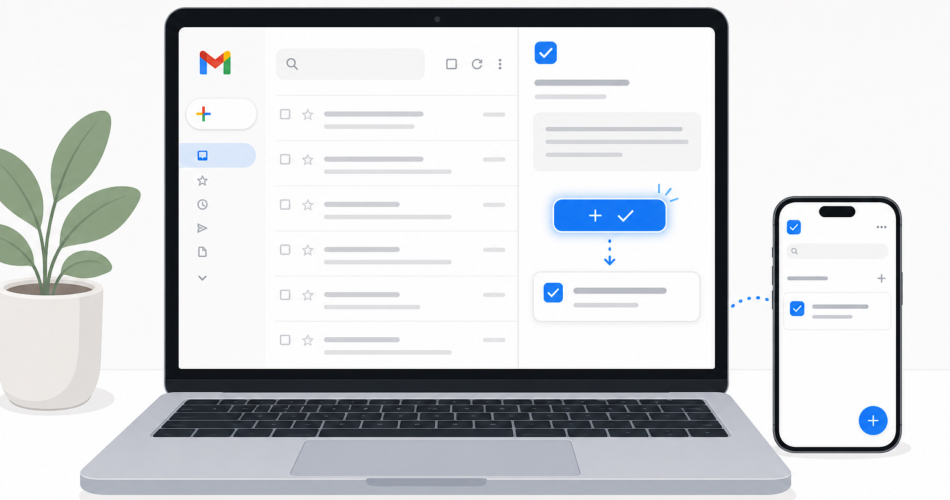
The integration adds Any.do directly inside Gmail. When you open any email, you will see an Any.do button in the sidebar. Click it and the email becomes a task: the subject line becomes the task title, and you can set a due date, add notes, assign it to a list, and optionally keep a link back to the original email.
The key benefit is that you never have to leave Gmail to capture the action. You read the email, decide it requires a follow-up, and the task is created before you move to the next message. No copy-pasting subject lines. No sticky notes. No “I’ll star it and come back to it” that never actually happens.
Tasks created from Gmail appear in your Any.do app immediately, across all your devices. You can see them alongside your other tasks, in your daily planner view, and in your calendar if you use Any.do’s calendar integration.
How to Set Up the Gmail Any.do Integration: Step by Step
- Open Gmail in your browser. The integration works via a Gmail add-on, so you need the web version to install it (it will then appear in the Gmail mobile app too).
- Go to the Google Workspace Marketplace. In Gmail, click the plus icon in the right sidebar (the one that opens add-ons). Search for “Any.do” or navigate directly to the Any.do listing in the Marketplace.
- Install the Any.do for Gmail add-on. Click Install and follow the prompts to grant the necessary permissions. Any.do needs permission to read email metadata (subject, sender) so it can populate the task title automatically.
- Open any email. Once installed, the Any.do panel will appear in the right sidebar whenever you have an email open.
- Click “Add to Any.do”. The email subject line pre-fills as the task title. You can edit it, set a due date, choose which list the task should go into, and add a note with any context you want to save.
- Save the task. It appears in your Any.do account immediately. A link back to the original email is saved with the task so you can always find the source message.
- Enable on mobile (optional). Open the Gmail app on iOS or Android, go to Settings, and enable the Any.do add-on. This lets you create tasks from emails on your phone with the same one-tap flow.
The whole setup takes about three minutes. After that the workflow is seamless.
The Best Ways to Use the Gmail Any.do Integration Daily
Process Your Inbox in Batches
The most effective way to use this integration is to set a time, once or twice a day, to go through your inbox and process everything that requires action. For each email that needs a follow-up, you click Add to Any.do, set a due date, and archive or label the email. By the end of the session your inbox is clean and your task list has everything that needs doing.
This pairs naturally with the GTD method’s “capture” step: every open loop from email gets moved out of your head and into a trusted system.
Use It for Delegation and Follow-Ups
When you send an email and need to follow up if you don’t hear back, turn the sent email into a task with a due date three or five days out. The task title might be “Follow up with [name] re: [topic]” and the link in the task notes takes you straight back to your sent email. You will never forget to chase a reply again.
Add Context Notes While the Email Is Fresh
When you create a task from an email, you can add a note before you save it. Use this to capture what the actual next action is, not just what the email was about. Instead of a task that says “Re: Q3 budget proposal,” write “Review Q3 budget draft and send comments by Friday.” The extra ten seconds makes the task actually useful when you see it on Thursday morning.
Connect It to Your Daily Planner
Any.do’s daily planner view pulls in everything scheduled for the day, including tasks created from Gmail. When you plan your morning, these tasks sit alongside everything else rather than hiding in a separate “email follow-up” folder. This is one of the practical advantages covered in how to prioritize your tasks when everything feels important: having all your actions in one place makes it easier to decide what to tackle first.
Gmail Any.do Integration vs. Starring Emails
Most people star emails they need to come back to. The problem is that starred emails have no due dates, no priority order, no way to distinguish “reply to this today” from “read this eventually.” Starring something moves it out of the inbox psychologically but not practically. You still have to re-read the email to remember what you were supposed to do with it.
Tasks created via the Any.do Gmail integration are different. Each one has a title you wrote that describes the actual action, a due date, and a direct link back to the email if you need context. Your starred folder becomes irrelevant once you have this workflow in place.
Does the Integration Work with Google Workspace Accounts?
Yes. The Any.do Gmail add-on works with both personal Gmail accounts and Google Workspace (formerly G Suite) accounts. If you are on a Workspace account managed by your organization, your admin may need to allow third-party add-ons. Most organizations have this enabled by default, but if you do not see the option to install add-ons, check with whoever manages your Workspace settings.
What About Other Email Providers?
The direct Gmail sidebar integration is specific to Gmail. If you use Outlook, Any.do has a separate Outlook add-in that works similarly. For other email providers, the workaround is to use Zapier to create tasks from new emails that match certain criteria, an approach covered in the Any.do Zapier integration guide. For most people using Gmail for work or personal email, the native add-on is the cleaner solution.
Getting Started
If email follow-ups are regularly falling through the cracks or your inbox is functioning as a second to-do list, the Gmail Any.do integration is a direct fix. It takes three minutes to install and changes how you process email in a way that immediately reduces mental overhead.
If you are not already using Any.do, start with a free account and install the Gmail add-on as the first thing you do. The integration works from day one, and the habit of capturing email tasks directly builds quickly once the button is there.