
Why Any.do + Microsoft Teams Is Worth Setting Up
If your team runs on Microsoft Teams, you already know the problem: action items come up in channels and chats, someone agrees to handle something, and then the conversation moves on. The any.do microsoft teams integration solves this by letting you create, assign, and track tasks directly from Teams, without asking anyone to switch to a separate app or change how they communicate.
This guide covers what the integration does, how to set it up step by step, and the most effective ways to use it so tasks captured in Teams actually get completed.
What the Any.do Microsoft Teams Integration Does
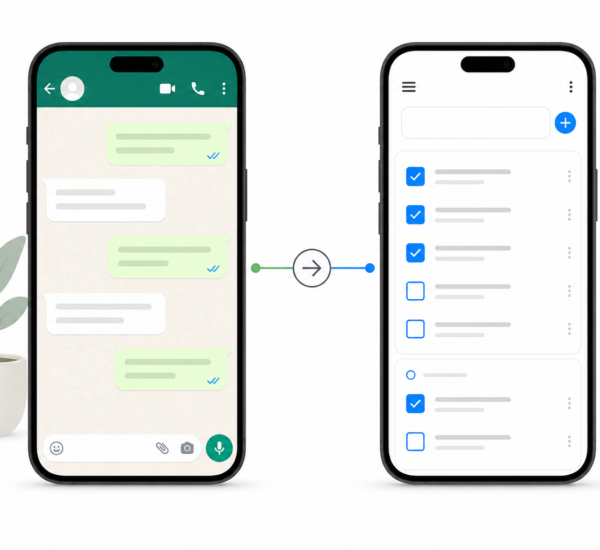
The integration connects your Teams workspace to Any.do. Once set up, you can turn any Teams message into a task with a single action. Tasks created this way appear immediately in Any.do, synced across all your devices, with the option to add a due date, assign to a team member, and organize into a specific project list.
You can also receive task reminders and deadline notifications directly inside Teams, so your team stays informed without needing to open Any.do separately. Teams becomes the place where action items are captured. Any.do becomes the system where they are tracked and completed.
How to Set Up the Any.do Microsoft Teams Integration: Step by Step
- Open Any.do in the web app or on desktop and go to Settings, then Integrations. Find Microsoft Teams in the list of available integrations.
- Click “Connect with Microsoft Teams.” You will be redirected to Microsoft’s authorization page. Sign in with your Microsoft account and select the Teams workspace you want to connect. Click Allow to grant Any.do access.
- Install the Any.do app in Microsoft Teams. After authorization, you will be prompted to add Any.do to your Teams workspace. Go to the Teams Apps store, search for “Any.do,” and click Add. This installs the Any.do bot and activates the message action that lets you create tasks from messages.
- Pin Any.do to your Teams sidebar for quick access. Right-click the Any.do icon in the Teams sidebar and select “Pin.” This keeps your task list one click away without opening a separate window.
- Create your first task from a Teams message. Hover over any message in a channel or chat and click the three-dot menu (More options). Select “Create Any.do task.” A panel opens where you can edit the task title, set a due date, choose a list, and optionally assign it to a team member.
- Configure notifications (optional). In Any.do’s integration settings, turn on Teams notifications for due-date reminders and task assignments. Choose whether notifications go to a specific channel or as direct messages to the assigned person.
The full setup takes about 10 minutes. Once it is running, creating a task from a Teams message takes under 15 seconds.
The Best Ways to Use Any.do as Your Teams Task Management App
Capture action items the moment they appear
The most valuable habit the integration enables is immediate capture. When someone in a Teams channel says “can you look into this?” or “let’s get that scheduled,” convert it to a task right then. Do not leave it in the channel and plan to come back to it. The 10 seconds it takes to create the task prevents the conversation from becoming a to-do that exists only in your memory.
This mirrors exactly how the Any.do Slack integration works, but for Microsoft Teams users. The workflow is the same: chat is where things are said, Any.do is where they are tracked.
Use it for cross-team requests
When another team sends a request in Teams, converting it to a task creates a record of what was asked and when. You can add context from the conversation in the task notes, set a realistic due date, and organize it into the right project list. The requester stays in Teams. Your work stays in Any.do. The integration makes both sides visible.
Send task reminders back into Teams channels
Any.do can post reminders to a Teams channel when tasks are due or overdue. For project leads managing shared work, setting up a project list with due-date reminders delivered to the team channel creates accountability without requiring daily status meetings. When something is due and not done, the channel sees it.
Combine with Any.do’s calendar integration
If your team also uses Microsoft Outlook Calendar or Google Calendar, the combination of Teams task capture and Any.do’s calendar sync creates a genuinely unified daily planning view. Tasks from Teams appear in Any.do alongside your calendar meetings. How Any.do’s calendar integration supports daily planning covers why seeing tasks and meetings in one view changes how you prioritize your day.
Any.do vs Microsoft To Do for Teams Task Management
Microsoft offers its own task tool called Microsoft To Do, which also integrates with Teams. To Do is built into the Microsoft 365 ecosystem and works well for basic personal task management. The limitations appear at the team level: To Do has limited project list sharing, no AI planning assistant, and no cross-platform support outside the Microsoft ecosystem.
Any.do as a teams task management app adds AI-assisted planning, shared project lists with assignment and visibility, a unified task-calendar view, and cross-platform support including iOS and Android. For teams that need actual task management rather than a personal checklist, Any.do covers substantially more ground. Shared task management for teams describes how Any.do handles multi-person task coordination in practice.
Managing Microsoft Teams Tasks Across Projects
One advantage of routing Teams action items into Any.do is that tasks from different Teams channels and conversations can be organized into project-specific lists rather than piling up in one inbox. A task from the product channel and a task from the sales channel land in Any.do and can be sorted into “Product Work” and “Sales Requests” lists respectively.
This means your daily planning in Any.do gives you a consolidated, organized view of everything that has been assigned or committed to across all your Teams conversations, with due dates, priorities, and project context attached. Any.do’s subtask feature lets you break larger requests into steps within the same task, keeping the full context in one place.
Get Started in 10 Minutes
If your team uses Microsoft Teams and tasks are regularly getting lost in channel history, the any.do microsoft teams integration is a direct fix. It takes 10 minutes to install and works within the communication flow your team already uses, without requiring anyone to learn a new system.
If you are not yet using Any.do, start with a free account and connect Teams as your first integration. Most teams find that task capture from conversations becomes a natural habit within the first few days.