Why Any.do Google Calendar Sync Changes How You Plan
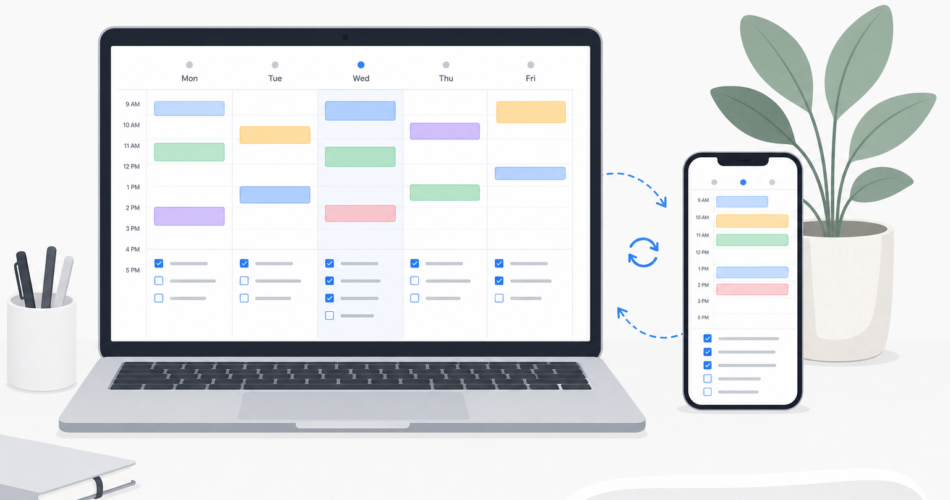
The any.do google calendar sync connects your task list and your calendar into a single view. Instead of checking Google Calendar to see your meetings and then switching to Any.do to see your tasks, everything appears together: appointments, deadlines, and to-dos side by side on the same timeline. You can see a busy afternoon of meetings and plan your task work around it without toggling between two apps.
This guide walks through exactly how to set it up, what the sync does, and how to use the combined view to plan your days more effectively.
What the Any.do Google Calendar Sync Does
When you connect Google Calendar to Any.do, your calendar events appear directly in the Any.do daily planner and calendar view. Tasks with due dates show up alongside your scheduled events on the same day. You can see a 10am meeting, a 2pm call, and three tasks due by end of day all in one view, without needing to open a second app.
The sync is read-based for calendar events: your Google Calendar events appear in Any.do, but tasks you create in Any.do do not push back to create events in Google Calendar unless you explicitly schedule them as time blocks. This keeps the integration clean — your calendar stays as your calendar, and Any.do is your task manager, with each visible from the other.
How to Set Up Any.do Google Calendar Sync: Step by Step
- Open Any.do on your phone or in the web app and tap the calendar icon in the bottom navigation (on mobile) or in the left sidebar (on web). This opens the calendar and planner view.
- Tap the settings gear icon in the calendar view, or go to your account settings and find “Calendar Sync” or “Connected Calendars.”
- Tap “Add Calendar” and select Google Calendar. Any.do will prompt you to sign in with your Google account.
- Authorize the connection. Google will show a permissions screen asking Any.do to read your calendar data. Approve it. Any.do only requests read access to your events, not write access to modify them.
- Choose which calendars to sync. If your Google account has multiple calendars (personal, work, shared family calendars), you can choose which ones appear in Any.do. You can toggle individual calendars on or off.
- Return to your Any.do calendar view. Your Google Calendar events will now appear alongside your tasks. Color coding from Google Calendar is preserved, so you can distinguish between different calendars at a glance.
The setup takes about three minutes. Once connected, the sync updates automatically whenever your Google Calendar changes — new events appear in Any.do without any manual refresh.
Using the Combined View for Daily Planning
The real value of the any.do google calendar sync shows up in your daily planning session. Each morning, when you open Any.do’s planner, you see the full picture of your day: every meeting, every deadline, and every task you have planned. You can immediately answer questions that are otherwise impossible to see in either app alone.
How much focused work time do I actually have today? If your calendar shows meetings at 10am, 1pm, and 3pm, the blocks between them are visible in the planner view alongside your tasks. You can decide realistically which tasks fit in the morning block and which should move to tomorrow.
This is the core of what makes calendar-integrated task management different from using two separate apps. How Any.do’s calendar integration supports daily planning covers this in depth, including the specific friction points that separate apps create and how a unified view removes them.
Scheduling Tasks as Calendar Blocks
Beyond seeing your calendar events in Any.do, you can also push tasks back into your calendar by creating time blocks. Select a task in Any.do and schedule it on a specific time slot. This creates a calendar event for that task, making it visible in Google Calendar as well as Any.do.
This approach, sometimes called time blocking, turns your task list into a schedule. Instead of a task sitting on your list until you get to it, it has a specific time allocated. Meetings and task blocks become peers in your calendar, and your day is planned rather than hoped for.
Syncing Multiple Google Calendars
If you maintain separate Google Calendars for different contexts (one for work, one for personal appointments, one shared with a partner or family), Any.do can sync all of them simultaneously. Each calendar retains its color coding from Google, so in the Any.do planner you can see work events in one color and personal events in another, alongside your task due dates.
For users who also use Any.do’s shared lists with a partner or family, seeing a family shared calendar in the same view as shared task lists creates a genuinely unified picture of what is happening. Shared task management works naturally alongside a shared calendar when both are visible in the same interface.
Any.do Google Calendar Sync vs Google Tasks
Google offers its own task layer called Google Tasks, which integrates natively with Google Calendar. Tasks appear as items on your calendar on their due date. This is useful but limited: Google Tasks has no subtasks, no project organization beyond simple lists, no team sharing, no AI assistant, and no mobile experience that matches a dedicated task manager.
The any.do google calendar sync gives you a proper task manager alongside your calendar rather than a simple checkbox layer. You get subtasks, shared lists, reminders, AI-powered daily planning, and a dedicated planner view, all synced with the same Google Calendar data you are already using.
Troubleshooting the Sync
If your Google Calendar events are not appearing in Any.do after setup, the most common causes are:
- Authorization was not completed. Return to calendar settings in Any.do and check whether Google Calendar shows as connected. If not, repeat the authorization steps.
- The calendar is toggled off. In your Any.do calendar settings, check that the specific Google Calendar you want to see is enabled.
- A refresh is needed. Pull down to refresh the calendar view in the Any.do mobile app, or reload the web app.
- Multiple Google accounts. If you have more than one Google account, make sure you authorized the right one. You can disconnect and reconnect to switch accounts.
Get the Full Picture of Your Day in One View
Using Any.do as your google calendar task manager means your task list and your calendar are never out of sync. The decisions you make about what to work on are informed by what you actually have scheduled, and your schedule is visible in the same place where you manage your tasks.
If you are not yet using Any.do, it is free to start and the Google Calendar sync takes about three minutes to set up. Your first combined planning session will show you immediately how much easier it is to plan a realistic day when tasks and calendar live in the same view.