Why Any.do and Outlook Calendar Work Better Together
Syncing Any.do with Outlook Calendar solves one of the most common productivity problems for Microsoft users: your tasks live in one place and your calendar lives in another, and planning your day means switching between two separate tools to understand what you have time for. The Any.do Outlook integration brings both together into a single view, so when you open your daily planner you see your meetings and your tasks side by side. You plan against your actual schedule rather than in isolation from it.
This guide walks through exactly how to set up the Any.do Outlook Calendar sync, what it does once connected, and how to get the most out of the combination if you live and work inside the Microsoft ecosystem.
What the Any.do Outlook Sync Does
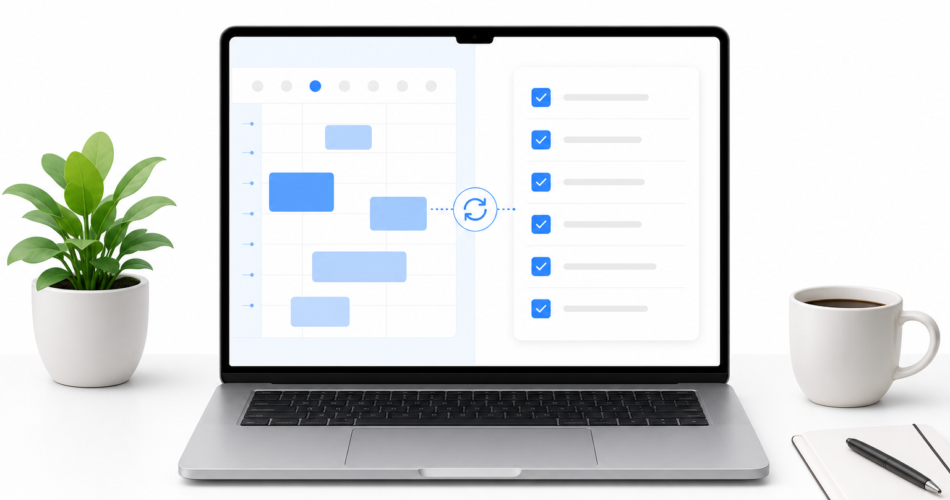
Once connected, Any.do pulls your Outlook Calendar events into its daily planning view. Your meetings, blocked time, and recurring appointments appear alongside your task list so you can see both your commitments and your to-dos in the same interface. This makes two things immediately better:
- Realistic daily planning. When you can see that Tuesday has three meetings between 10am and 3pm, you plan your task list for Tuesday accordingly. Without that visibility, you add tasks to Tuesday and discover mid-day that there is no time to do them.
- Time blocking with actual context. Any.do lets you drag tasks onto calendar slots to schedule when you will work on them. With Outlook events visible, you block tasks into the gaps between meetings rather than guessing at your available time.
The sync is read from Outlook Calendar into Any.do. Your tasks in Any.do do not appear in Outlook unless you use a separate automation tool like Zapier or Microsoft Power Automate to push them back.
How to Sync Any.do with Outlook Calendar: Step-by-Step
- Open Any.do on mobile or web. The calendar integration is available on both the iOS/Android app and the web app at app.any.do. Either works for the initial setup.
- Go to Settings. On mobile, tap your profile icon in the top corner and select Settings. On the web app, click the gear icon.
- Select Calendar Integration or Connected Calendars. Depending on your platform and app version, this may appear as “Calendar,” “Integrations,” or “Connected Calendars” in the Settings menu.
- Choose Outlook Calendar. Any.do supports both Google Calendar and Outlook Calendar. Select Outlook from the list of available calendar providers.
- Sign in with your Microsoft account. Any.do will open a Microsoft authentication window. Sign in with the Microsoft account connected to the Outlook Calendar you want to sync. This can be a personal Microsoft account (Outlook.com or Hotmail) or a work/school Microsoft 365 account.
- Grant calendar permissions. Microsoft will ask you to allow Any.do to read your calendar data. Approve the permissions. Any.do only reads your events; it does not modify or delete anything in your Outlook Calendar.
- Select which calendars to display. If your Outlook account has multiple calendars (work, personal, shared team calendars), Any.do will show you the full list. Select which ones you want to appear in the Any.do daily view. You can toggle individual calendars on or off at any time.
- Open the daily planner view. Once connected, go to the “My Day” or daily planner section in Any.do. Your Outlook events will now appear in the timeline alongside your tasks. The setup is complete.
Setting Up Any.do Outlook Sync on Desktop
If you use the Any.do desktop app on Windows (available from the Microsoft Store or any.do), the setup process is identical to the web app. Open Settings, navigate to Calendar Integration, and connect your Microsoft account. The desktop app remembers the connection and keeps the sync active in the background.
For users who spend most of their day in Outlook itself, Any.do also has a browser extension that works with Outlook Web. The extension adds a task panel to the Outlook interface so you can add tasks and see your Any.do list without leaving your email client. This works particularly well for the habit of turning emails into tasks directly from the Outlook interface, keeping your inbox and your task list in sync without switching apps.
Microsoft 365 and Work Accounts: What to Know
If you are connecting a Microsoft 365 work account, your organization’s IT administrator may need to approve Any.do’s access to Microsoft calendar data. This is a standard Microsoft 365 tenant permission requirement, not specific to Any.do. If you see a message saying “Approval required” or “Admin approval needed” during the sign-in step, ask your IT team to approve the Any.do app in the Microsoft 365 admin center.
For most individual users and small businesses without restrictive Microsoft 365 policies, the connection works immediately without any admin action.
Personal Microsoft accounts (Outlook.com, Hotmail.com, Live.com) do not require admin approval. The connection goes through in one step.
Getting the Most Out of Any.do and Outlook Together
Use the daily view every morning
The value of the Any.do Outlook sync is highest when you build a habit of opening the Any.do daily view at the start of each day rather than jumping straight into Outlook. The daily view shows you your Outlook meetings for the day and your task list together, giving you a complete picture of the day before it starts. From there, you can decide which tasks fit in which gaps, drag tasks onto time slots if you want to time-block, and identify immediately if the day is overloaded before you have committed to anything.
Time blocking your day with this combined view takes about five minutes each morning and changes how predictably your most important tasks actually get done.
Add tasks directly from Outlook emails
When an email requires action, adding a task immediately rather than leaving the email as a reminder keeps your inbox cleaner and your task list current. With the Any.do browser extension installed in your Outlook Web browser, you can add a task from any email with one click, include the email context in the task notes, and set a due date, all without leaving Outlook.
Connect your work and personal calendars together
Many Microsoft users have a work Outlook Calendar and a personal calendar (Google Calendar or a personal Outlook account). Any.do can connect to both simultaneously, showing work meetings and personal commitments in the same daily planning view. This matters most on days when a personal appointment and a work meeting both need to fit into the same afternoon. Setting up Google Calendar sync alongside Outlook gives you the complete picture if you use both.
Use shared lists for Microsoft Teams users
If your team coordinates in Microsoft Teams, Any.do’s shared lists let you manage team task assignments outside of Teams without losing the connection to your shared work. Tasks assigned to team members in Any.do appear in each person’s daily view alongside their Outlook calendar, which keeps individual task lists and team commitments in the same planning interface. Any.do’s Microsoft Teams integration takes this further by letting you create and manage tasks directly from Teams channels.
Troubleshooting the Any.do Outlook Connection
Events not appearing after setup: Close and reopen Any.do. The initial sync can take a few minutes, especially if your Outlook calendar has a large number of historical events. If events still do not appear after five minutes, go back to Settings, disconnect the calendar, and reconnect.
Only some calendars are showing: Go to Settings and check which calendars are toggled on in the Connected Calendars section. Any.do shows only the calendars you explicitly selected during setup. You can add additional Outlook calendars at any time.
Work account requires admin approval: Contact your Microsoft 365 administrator and ask them to approve the Any.do application in the Azure Active Directory enterprise applications settings. This is a one-time action that applies to all users in your organization.
Start Planning Your Day With Both Tools Together
The Any.do Outlook Calendar sync is one of those integrations that changes how you plan your day once it is set up. The ten-minute setup is worth doing today rather than later, because the benefit compounds with every morning planning session.
If you are not yet using Any.do, start free here. The Outlook Calendar integration is available on the premium plan, and the free tier lets you test the full daily planning experience before connecting your calendar.